Introduction
The fastest way to be disappointed by a production press is to buy it for work it was never built to do. The fastest way to get value from one is to know its envelope of capability precisely, and to plan around the edges.
This is that guide: what HP iJetColor presses do well, what they will not do at all, and how to tell which side of the line your application sits on.
Key Takeaways
- These are envelope and packaging presses, not general-purpose print engines
- Envelope sizes run from 2" x 3.5" up to 12" x 17" depending on model
- Only the 1175 Pro + PXG prints packaging, to 14" x 20" and 1/2" thick
- There is no folding, collating, stitching, binding, die-cutting or laminating
- No UV curing, no rigid substrates, no roll-fed labels, no wide-format
- Setup in one or two envelopes is what makes short runs profitable
What These Presses Are Built For
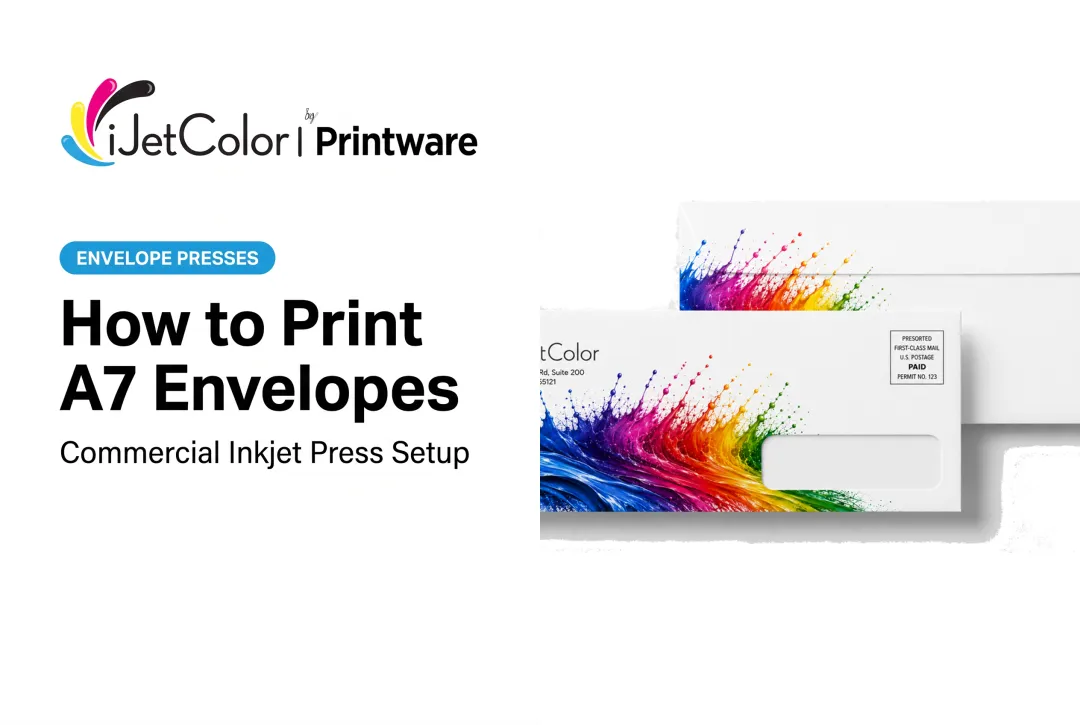
Full-bleed CMYK envelope production. Every press prints edge-to-edge with PMS color matching from a PDF-based DFE and RIP, using pigment-based HP ink that is water, fade and scratch resistant.
Envelope sizes across the line:
- 1175 — up to 11.75" x 17"
- 1175C — 3" x 3.5" to 12" x 17"
- 1175 Pro + PXG — 2" x 3.5" to 12" x 17"
- 1275 Pro — 12" x 14" feed, imaging every envelope size up to 12.75"
Speeds: up to 7,000 #10 per hour on the 1175, 6,210 to 10,000+ on the 1175C, 10,000+ on the 1175 Pro + PXG, and up to 20,000 on the 1275 Pro.
Variable data personalization, processed at high speed through the PDF-based DFE.
Direct-to-package printing, on the 1175 Pro + PXG only: paper bags, small corrugate and other packaging substrates up to 14" x 20" and 1/2" thick, at 18 inches per second.
Short-run economics. Setup takes one or two envelopes rather than a plate make-ready, which is the single specification that decides whether small personalized runs are profitable.
What These Presses Do Not Do
Said plainly, because vagueness here costs customers money.
No finishing. There is no folding, collating, scoring, saddle stitching, perfect binding or booklet-making in the line. These presses image a piece; they do not assemble one. Booklet and catalog production requires bindery equipment that iJetColor does not manufacture.
No labels. No die-cutting, no laminating and no roll-to-roll web path. Pressure-sensitive label stock on a roll is outside the line entirely. What these presses do instead is image the finished item — the bag, the box, the envelope — rather than a label applied to it.
No UV or rigid substrates. All five products are aqueous HP thermal inkjet systems. There is no UV lamp, no UV DTF and no flatbed for rigid non-porous materials.
No wide-format. Maximum print width is 12.7" on the 1275 Pro and maximum print area 11.7" x 17" on the rest. Banners, signage and vehicle wraps are not achievable.
Thickness limits are hard. 1/8" on the 1175, 3/8" on the 1175C and for envelopes on the 1175 Pro + PXG, and 1/2" for packaging on the 1175 Pro + PXG. Stock outside those limits will not feed, regardless of how the artwork looks.
Where The Line Sits For Direct Mail
Direct mail work usually spans several processes, and it is worth being clear which one these presses own.
They print the envelope — full-bleed, personalized, PMS-matched, at production speed. They can also print packaging components on the 1175 Pro + PXG.
They do not fold the insert, stitch the booklet, apply the label or stuff the envelope. Those remain separate operations on separate equipment. A mail piece is a workflow; this press is one confident, high-volume station within it.
For many operations that is exactly the right division of labour: the envelope is the part that was expensive to outsource and slow to schedule, and it is the part this equipment makes fast and cheap.
Choosing Between The Models
Once your application is inside the envelope of capability, the choice is volume and substrate:
- HP iJetColor 1175 — compact benchtop, 9 ft by 3 ft, 110V 15A, 1/8" thickness. Entry point for in-housing envelope work.
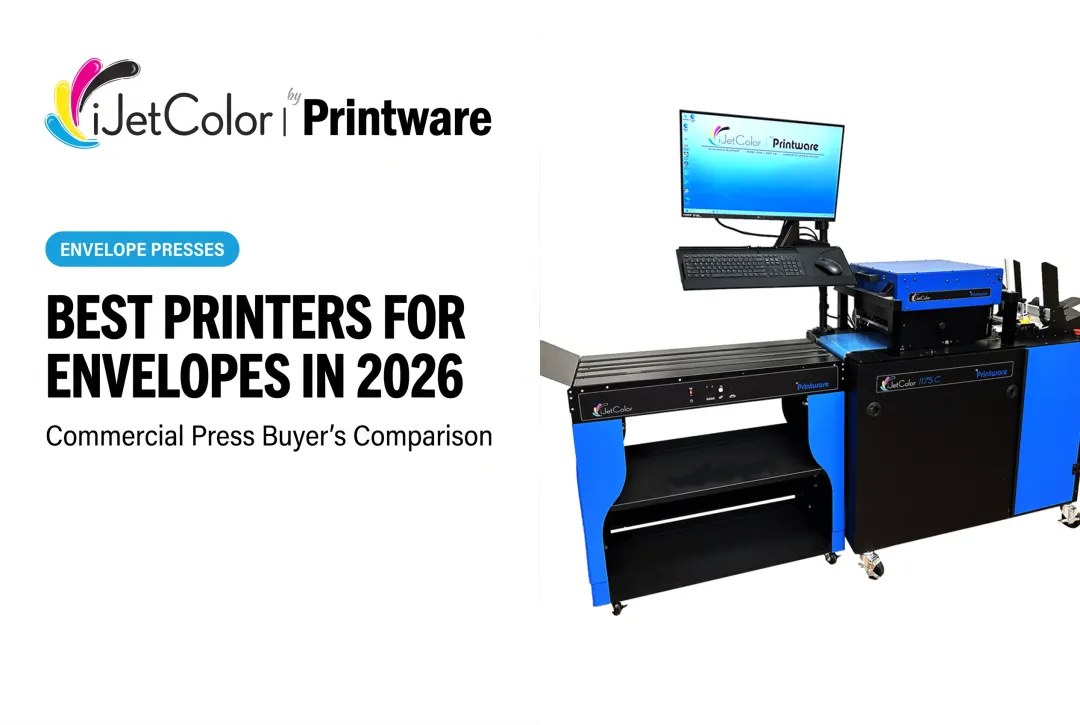
- HP iJetColor 1175C — console, 9 ft by 3 ft, 110V 15A, 3/8" thickness. Built for 100,000+ envelopes a month.
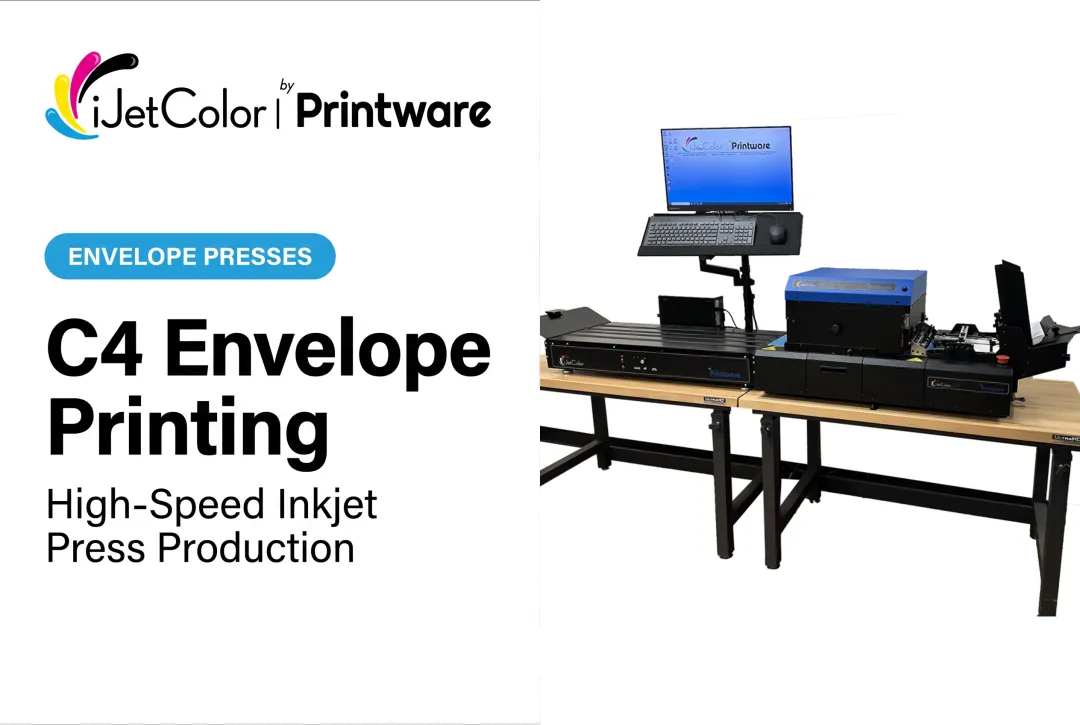
- HP iJetColor 1175 Pro + PXG — 10.5 ft by 3 ft, 110V 15A. The only packaging-capable press; built for 150,000+ envelopes a month.
- HP iJetColor 1275 Pro — 18 ft by 4 ft, 220V 30A plus 110V 15A. Production class, 1200 x 1200 dpi, 8 ft smart exit conveyor with double-feed detect.
All four run with a single operator.
Qualify Before You Commit
If your application is near an edge — unusual stock, borderline thickness, a substrate with an existing coating — test rather than assume. Run your own artwork on your own material at production speed and check feed reliability, color against PMS targets and durability through your finishing process.
Live demos run from 2935 Waters Rd, Suite 200, St Paul, MN 55121, and sample kits are available on request.
Conclusion
HP iJetColor presses are specialists: high-speed, full-bleed, personalized envelope printing, plus direct-to-package work on the 1175 Pro + PXG. Inside that envelope they are fast, economical on short runs and straightforward to operate with one person.
Outside it — finishing, binding, labels, UV, wide-format — they are simply the wrong tool, and knowing that up front is what makes the purchase a good one. To check your application against the specifications, call (800) 456-1400.
Frequently Asked Questions
Can these presses print and bind booklets?
No. There is no folding, collating, saddle stitching or binding capability in the line. These presses image envelopes and packaging; assembly and finishing require separate bindery equipment that iJetColor does not manufacture.
Do they print labels or stickers?
No. There is no die-cutting, laminating or roll-to-roll web path. These presses print direct to the finished item — an envelope, a paper bag or a small corrugate box — rather than onto label stock.
What is the largest piece they can handle?
Envelopes up to 12" x 17" on the 1175C and 1175 Pro + PXG, up to 11.75" x 17" on the 1175, and every envelope size up to 12.75" on the 1275 Pro. Packaging goes to 14" x 20" on the 1175 Pro + PXG only.
What is the thickness limit?
1/8" on the 1175, 3/8" on the 1175C and for envelopes on the 1175 Pro + PXG, and up to 1/2" for packaging on the 1175 Pro + PXG.
Can they print on rigid or non-porous materials?
No. All five products are aqueous HP thermal inkjet systems with no UV curing, so rigid and non-porous substrates are outside the line.
What makes short-run work economic on these presses?
Setup takes one or two envelopes rather than a plate make-ready, and variable data runs from the PDF through the DFE as standard. That combination is what allows a few hundred personalized pieces to be quoted profitably.