Introduction
On a desktop printer, running out of ink is an interruption. On a press running 10,000 envelopes an hour against a mail drop deadline, it is a missed schedule and a re-run.
Production supply monitoring is therefore not about glancing at a percentage bar. It is about knowing consumption before the job starts, tracking printhead life against impressions, and having a reorder rhythm that never leaves you short.
This guide covers how that works on HP iJetColor envelope presses.
Key Takeaways
- Plan consumption before the run rather than watching a level during it
- Printhead life is measured in impressions, up to one million on the 1175 models
- The DFE and RIP on its own dedicated CPU is the operator's status point
- The iJetColor Assist tablet ships with the 1175, 1175C and 1175 Pro models
- The Flow 2.0 Cost Calculator forecasts per-job consumption with CSV export
- iJetAdvantage adds discounted ink, next-day printheads and monthly free shipping
Where Status Actually Lives
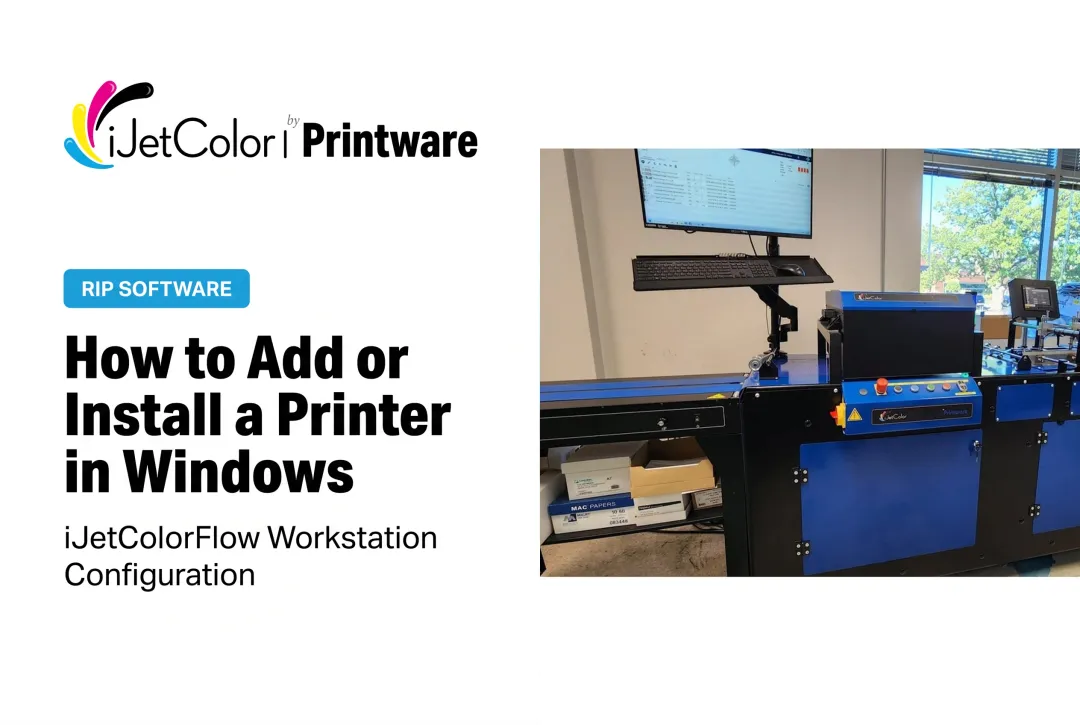
An iJetColor press is not a desktop device with a driver and a system tray icon. Each system ships with a PDF-based DFE and RIP preloaded on a dedicated CPU, and that front end is where the operator works: submitting jobs, managing the queue and watching machine state.
On the 1175, 1175C and 1175 Pro models, the iJetColor Assist tablet is included with the press. It is part of the operator's toolkit for running and maintaining the system rather than a separate accessory to buy.
For anything the operator cannot resolve at the machine, remote web diagnostics are part of an iJetAdvantage service and supply agreement, so a service engineer can look at the system without a site visit.
Forecast Before You Run
The most useful supply habit has nothing to do with monitoring. It is forecasting.
iJetColor Flow 2.0 includes a Cost Calculator with CSV export, available for all iJetColor 1175 models. Run a representative job through it on your actual substrate and you get a per-piece figure you can both quote from and plan supply against. Flow 2.0 also includes a Print Quality Optimizer that tunes die position and ink density — density being one of the largest levers on how much ink a job consumes.
Flow 2.0 is DFE-based RIP software plus an HP printhead firmware upgrade, installed remotely by TeamViewer in 10 to 15 minutes. It costs $990, or $490 with iJetAdvantage, and is free to 2025-model users. The Print Quality Optimizer tool is free for all 1175 models.
Printhead Life: Impressions, Not Percentages
The consumable that deserves the most planning attention is the printhead.
HP printheads on the 1175, 1175C and 1175 Pro + PXG are rated up to one million impressions; the 1275 Pro's HP 108 mm long-life printbar delivers millions. That is a planning figure: you can look at your monthly volume, divide, and know roughly when replacement lands. It turns an unplanned stoppage into a scheduled maintenance event.
Under an iJetAdvantage agreement, next-day replacement printheads and spare parts are available, which is what keeps a scheduled replacement from becoming a week of downtime.
Reorder Discipline
Supply planning on a production press works best as a rhythm rather than a reaction. Three things make that practical under an iJetAdvantage service and supply agreement:
- Discounts on ink and wearable parts, so consolidated ordering is cheaper than emergency ordering
- Free standard shipping once a month on orders over $500, which rewards a planned monthly order
- Next-day replacement printheads and spare parts for the things you cannot plan
Put together, the sensible pattern is a monthly consolidated order sized from your forecast, with next-day availability as the safety net rather than the routine.
A practical checklist:
- Forecast next month's volume by job type
- Use the Cost Calculator to convert that into ink consumption
- Check printhead impressions against the one-million rating
- Place one consolidated order above the $500 free-shipping threshold
- Keep wearable parts stocked to the level your service engineer recommends
What To Watch On Press
Forecasting does not remove the need to watch output. Print quality is the earliest signal that something in the supply chain needs attention:
- Banding or streaking on full-bleed work often points at the printhead rather than at ink volume
- Color drift against a PMS target may indicate a calibration or profile issue, not a supply one
- Density changes across a run can reflect substrate variation as much as ink
Because these presses print full-bleed with PMS color matching from a PDF-based DFE and RIP with ICC profiles, color issues are usually resolved in the front end. If output changes and the file has not, that is the point to call technical support.
When To Call
iJetAdvantage includes 24/7 free phone technical support, with live response guaranteed within 60 minutes during business hours on (800) 456-1400 ext 2. Without an agreement, phone technical support is billed at $150 per hour per incident.
Call rather than experiment when:
- Print quality changes and the file has not
- A printhead is approaching its impression rating
- You are planning a volume increase and want supply sized for it
- An error condition repeats after a restart
Conclusion
Supply management on a production envelope press is a planning discipline, not a monitoring one. Forecast consumption with the Flow 2.0 Cost Calculator, track printhead life in impressions, order monthly against the free-shipping threshold, and keep next-day replacement as a safety net rather than a habit.
Do that and the press stops being a source of surprises. To review supply planning for your own volume and job mix, call (800) 456-1400.
Frequently Asked Questions
How do I check supply status on an iJetColor press?
Through the PDF-based DFE and RIP preloaded on the press's dedicated CPU, which is the operator's working interface. The 1175, 1175C and 1175 Pro models also ship with the iJetColor Assist tablet.
How long does a printhead last?
HP printheads on the 1175, 1175C and 1175 Pro + PXG are rated up to one million impressions. Under an iJetAdvantage agreement, replacement printheads ship next-day.
Can I forecast ink use before running a job?
Yes. The iJetColor Flow 2.0 Cost Calculator produces a per-job figure with CSV export, and is available for all iJetColor 1175 models. Run it against a representative job on your actual substrate for a usable number.
What ink do these presses use?
Pigment-based HP ink that is water, fade and scratch resistant, jetted through HP thermal inkjet printheads — an HP TIJ 4.0 108 mm CMYK printbar on the 1275 Pro, and the HP FI-1000 PageWide printhead on the 1175, 1175C and 1175 Pro + PXG.
What supply benefits does iJetAdvantage include?
Discounts on ink and wearable parts, first-year non-wearable parts warranty free with signature, next-day replacement printheads and spare parts, free standard shipping once a month on orders over $500, remote web diagnostics, firmware upgrades, free unlimited training and 24/7 phone technical support.
Print quality dropped but the file did not change — what now?
Check the printhead against its impression count first, then calibration and color profiles in the DFE and RIP. If neither explains it, call technical support on (800) 456-1400 ext 2; remote web diagnostics under iJetAdvantage let an engineer inspect the system without a site visit.